
Table of contents
Open the proof of a delivered order
1. In Plan & dispatch, open the order (its code, or ⋮ > View details). From the order's ⋮ menu, Delivery proof opens the proof directly.
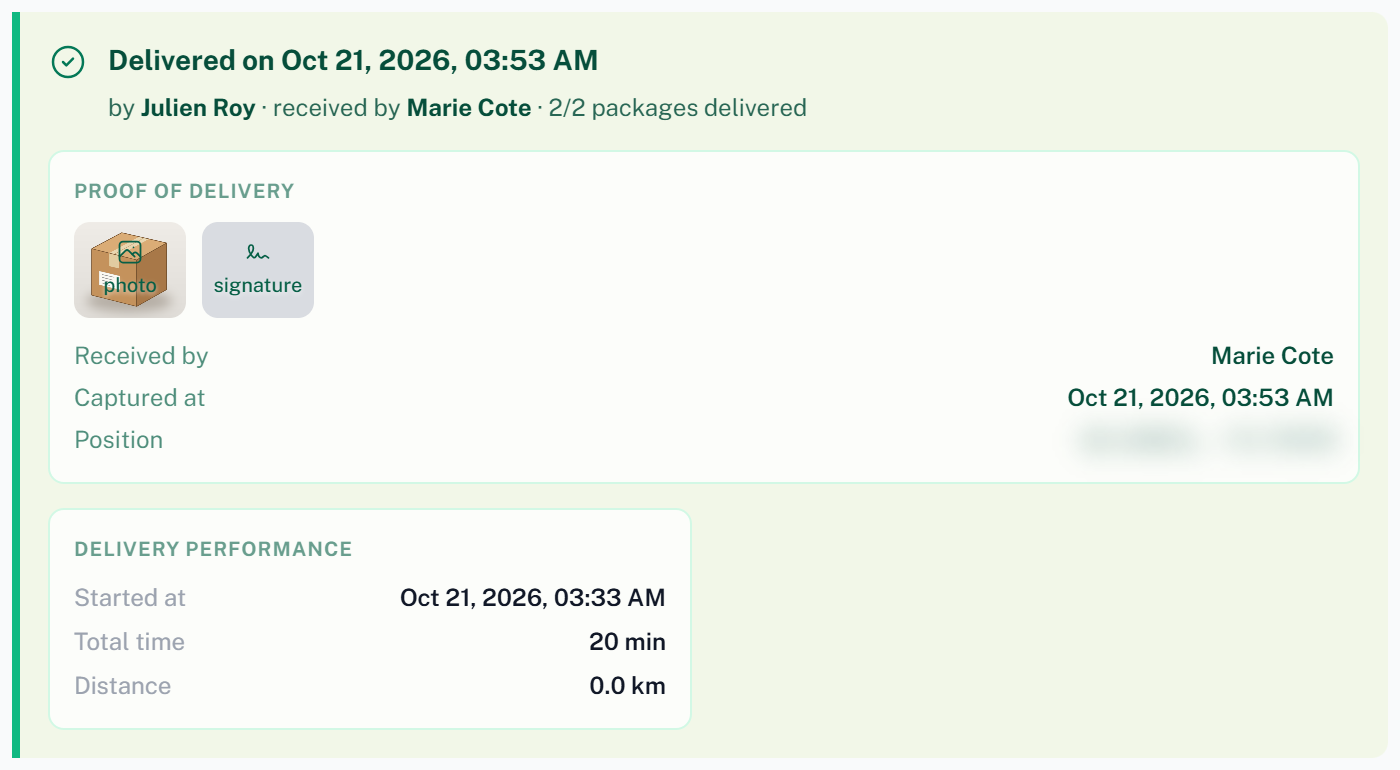
2. The green block at the top reads Delivered on <date>, with the driver, the name of the person who received the package, and how many packages were delivered.
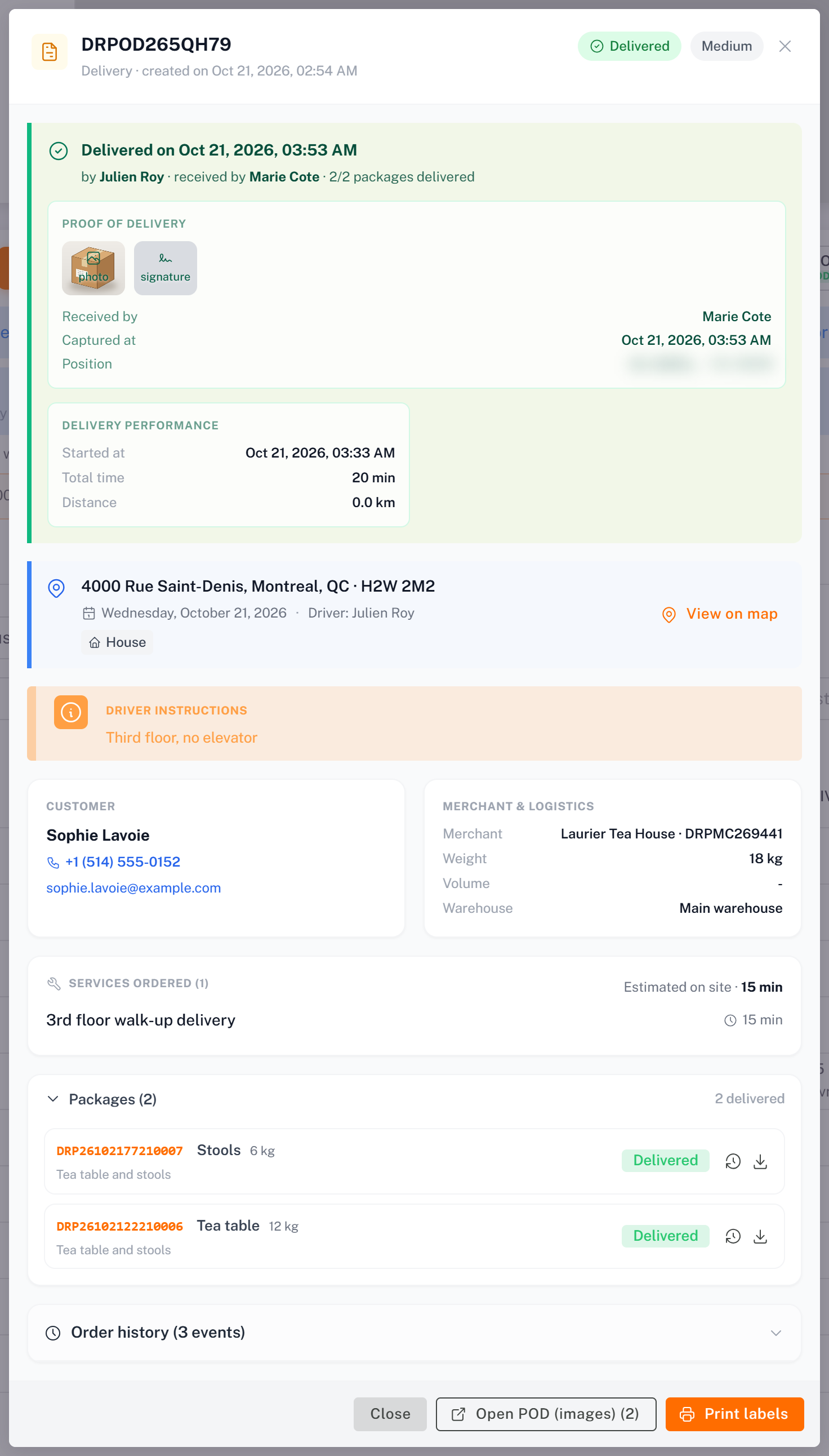
The Proof of delivery card shows:
the photos (and videos) taken at the door; click one to open it full size, Open POD (images) opens them all;
Received by: the name the driver entered (required as soon as a package is delivered);
Captured at and Position: when and where the proof was taken;
the signature, when the customer signed.
Delivery performance gives when the stop started, how long it took and the distance.
Partial deliveries and failures
A partial delivery reads N of M packages delivered: the proof covers the delivered packages.
A failed package keeps its own photos. They are not in the order's proof: open the package (click its code) to see Photos of this failure. See [Following Up a Failed Delivery and Rescheduling an Order](../../03-routes-orders/07-following-up-a-failed-delivery/en.md).
Who else sees the proof
The merchant sees the same proof in their portal (Delivery Proof).
The customer sees the photos and the signature on their tracking page once the delivery is done.
Was this article helpful?
Still need help?
Contact support