
Table of contents
Follow your returns
Open Returns. The tiles count your returns: Total Returns, Pending (waiting for a decision or at the warehouse), In Progress (on their way back to you) and Returned (packages you received). My returns lists them with the order, the carrier, the package, the customer, the Reason, the Condition of the package, the Status and the date it was received. Filter by Status or date, or search by return, order or carrier.
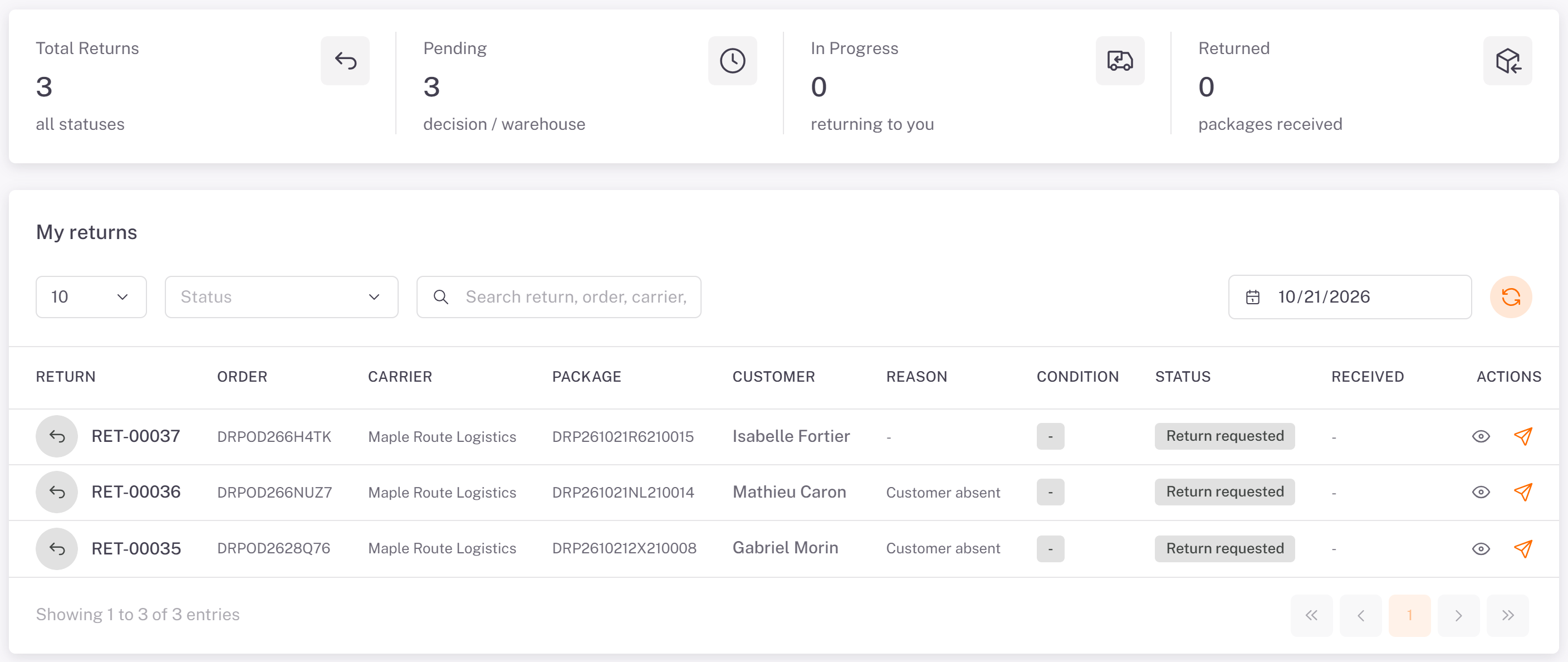
Tell the carrier what to do
1. On the return's row, click Submit a request.
2. Choose the Request type:
Send the package back to me
Re-deliver to customer
Contact the customer
Provide an instruction
Cancel the order
Destroy the package
3. Add a Note (optional) with the details, then click Send.
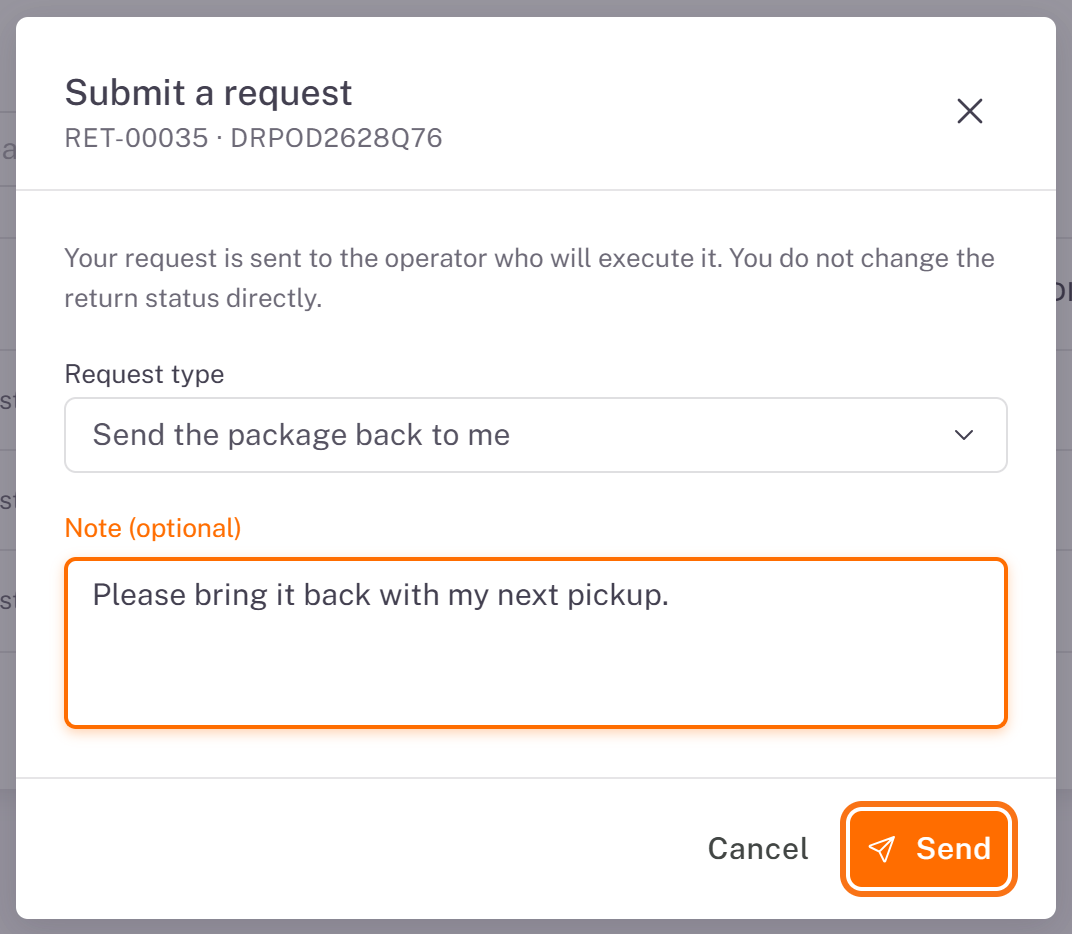
Your request is sent to the carrier, who carries it out. You do not change the return status yourself: it changes as the carrier handles the package.
Statuses and condition
Status Meaning
Return requested The return has been opened.
Received at warehouse The package is back at the carrier's warehouse.
Ready to reschedule, Rescheduled The package will be delivered again.
Return to merchant, Assigned to route, Out for return The package is on its way back to you.
Returned to merchant You have the package back.
Held in warehouse The carrier keeps it until you decide.
Return failed, Canceled The return did not go through, or was canceled.
The Condition is recorded by the carrier when it handles the package: OK, Damaged, Opened, Missing part or Wrong package. Click the eye icon (View details) to see the details: the photo of the package when the carrier took one, the carrier's decision note and your own request.
Was this article helpful?
Still need help?
Contact support