
Table of contents
Before you begin
You are an administrator of the account: only administrators can change these switches.
Turn a channel on or off
1. Open Settings, then the Notifications tab.
2. Each line is one kind of message. Turn it off with its switch; the change is saved automatically. Everything is on by default.
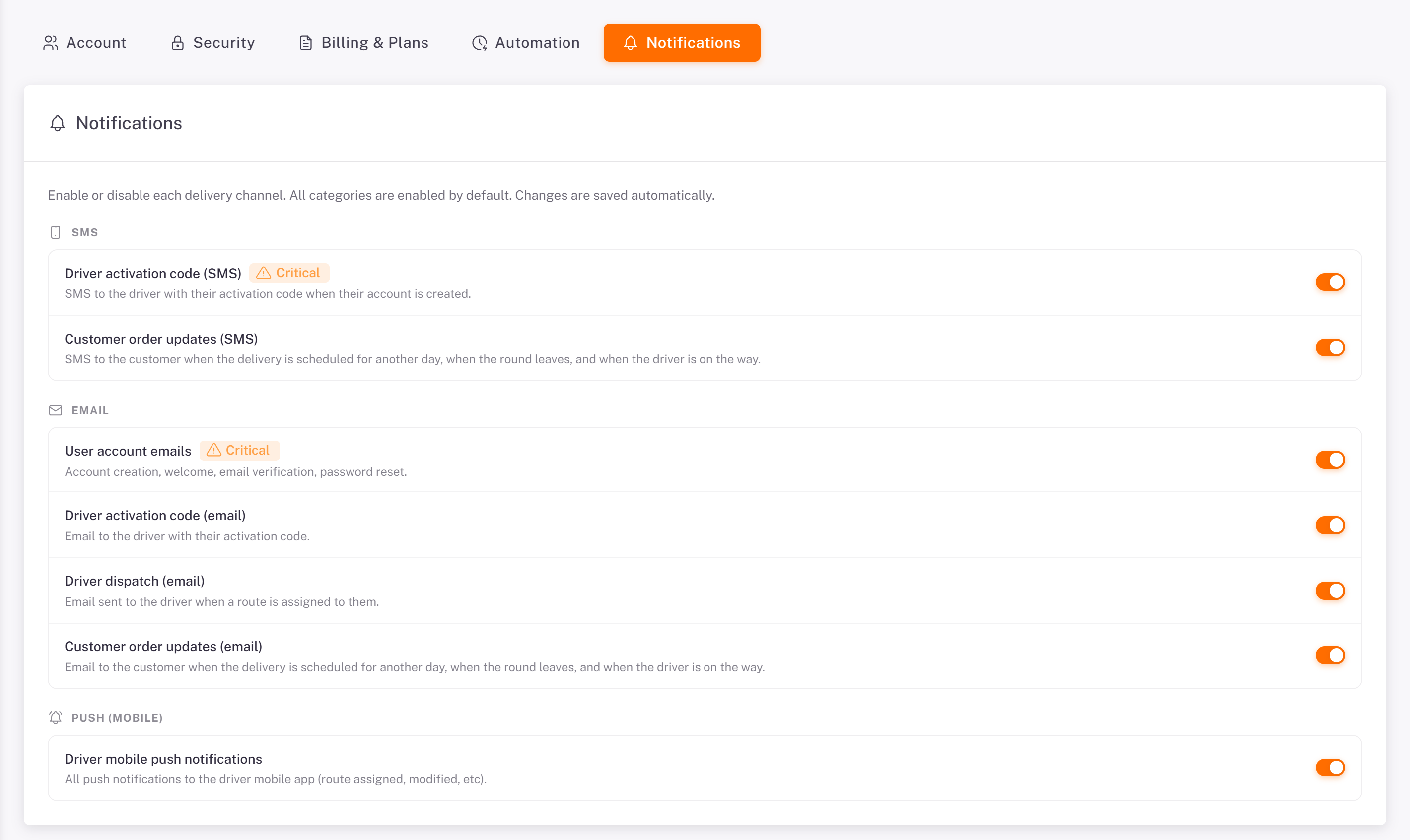
Section Line| What it sends
SMS |Driver activation code (SMS) (Critical) The activation code to a new driver.
Customer order updates (SMS) To the customer: delivery scheduled for another day, route leaving, driver on the way.
Email User account emails (Critical) Account creation, welcome, email verification, password reset.
Driver activation code (email) The activation code to the driver, by email.
Driver dispatch (email) An email to the driver when a route is sent to them.
Customer order updates (email) The same customer messages as the SMS, by email.
Push (mobile) Driver mobile push notifications All notifications to the driver app (new route, changes, and so on).
Lines marked Critical are needed for your team and drivers to sign in. Turning one off shows a warning: for example, without Driver activation code (SMS), new drivers get no code by SMS, so keep the email version on.
Set the SMS sender prefix
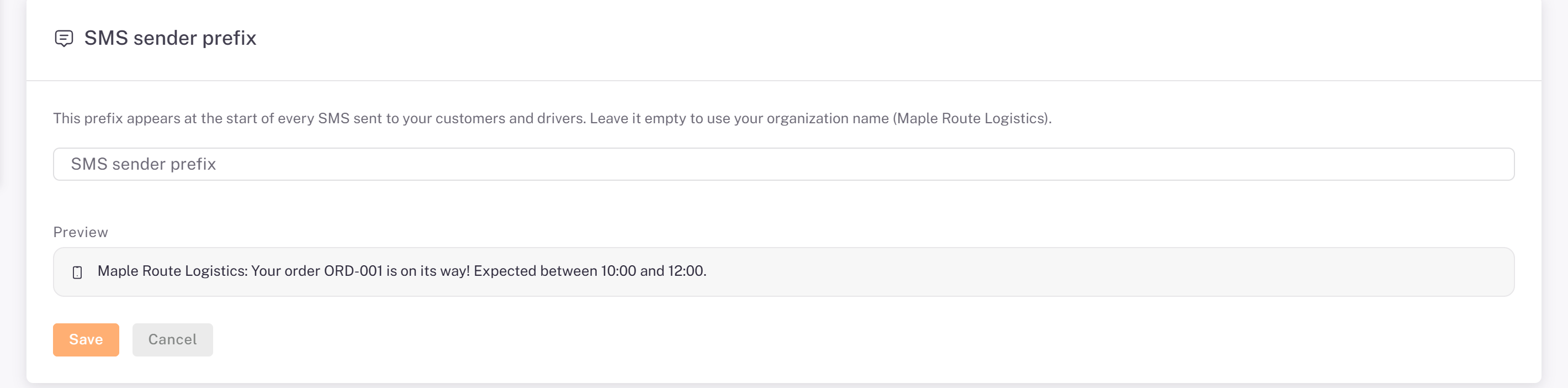
Every SMS starts with a prefix, your organization name by default. To change it, open Settings > Account, card SMS sender prefix: type the prefix (20 characters at most), check the Preview, then click Save.
Was this article helpful?
Still need help?
Contact support