
Table of contents
Before you begin
You have a role that can manage users and roles (the Admin role can).
Roles
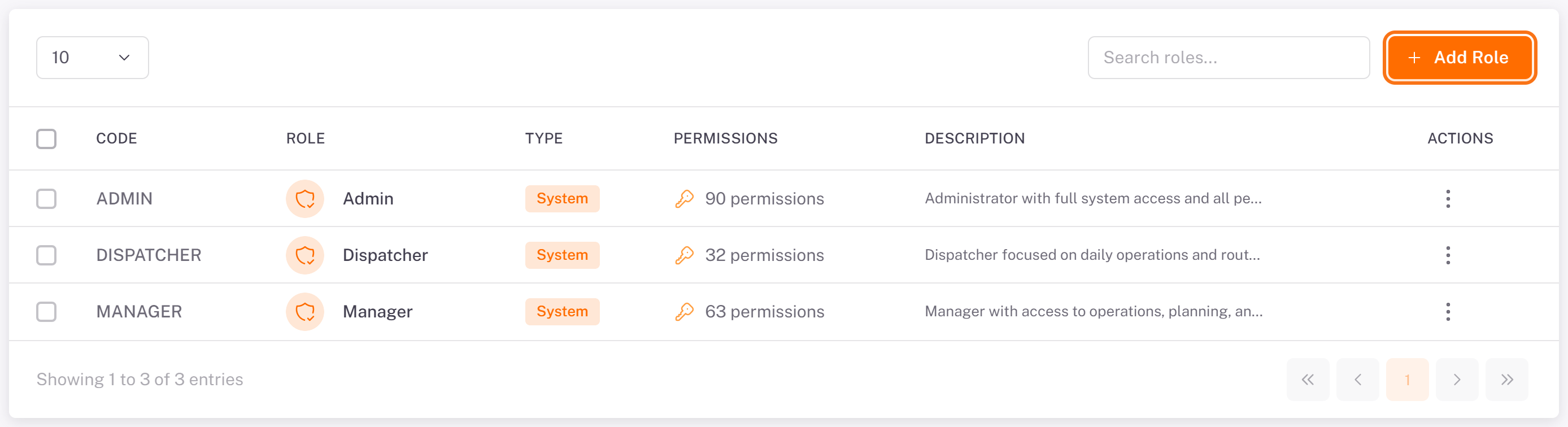
In the menu, open User management > Roles. Three System roles come with every account: Admin (all permissions), Manager and Dispatcher. The roles you create are of type Custom.
Create a role
1. Click Add Role.
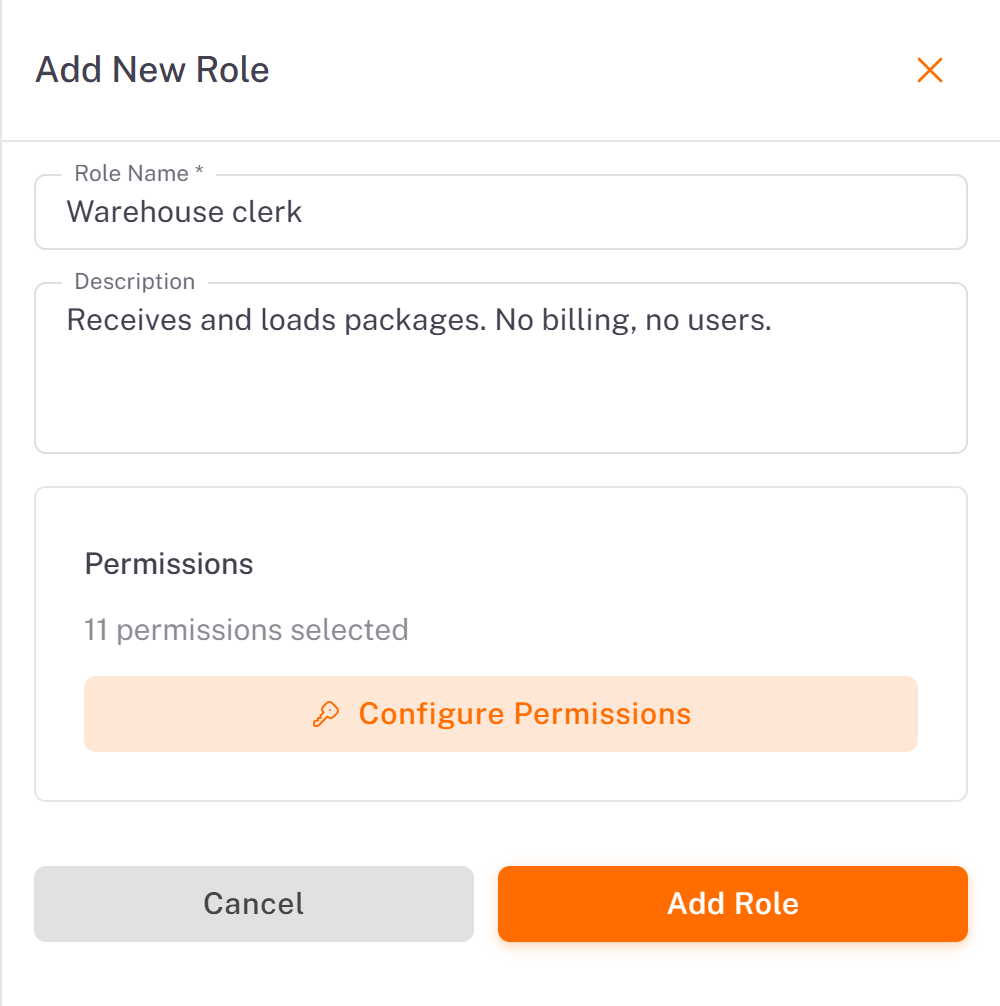
2. Enter the Role Name and, if useful, a Description.
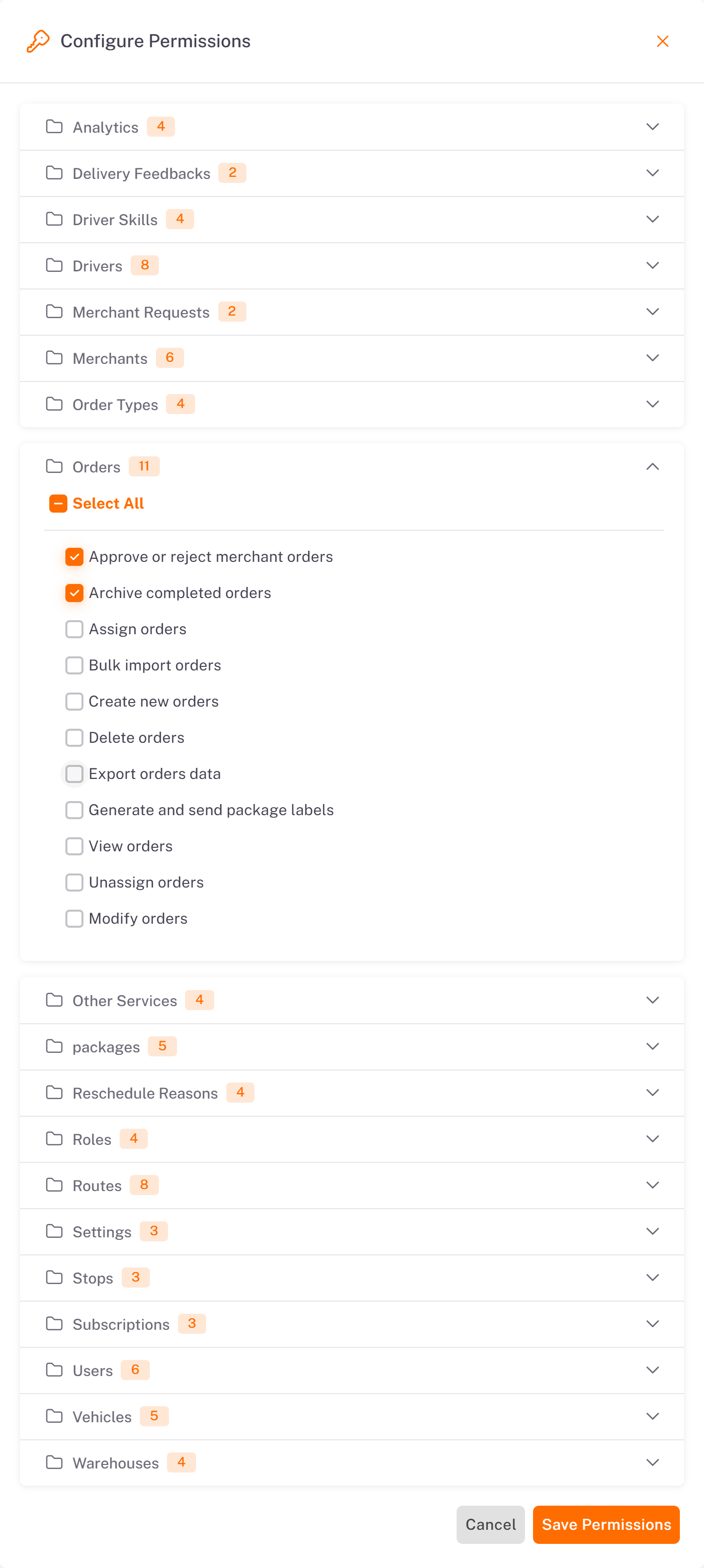
3. Click Configure Permissions. The permissions are grouped by module (Orders, Drivers, Routes, Warehouses, Billing and so on). Open a module, then tick the permissions one by one or use Select All for the whole module. Click Save Permissions.
4. The panel shows how many permissions are selected. Click Add Role.
The new role is available right away when you create or edit a user. To change a role later, use its ⋮ menu (Edit).
Users
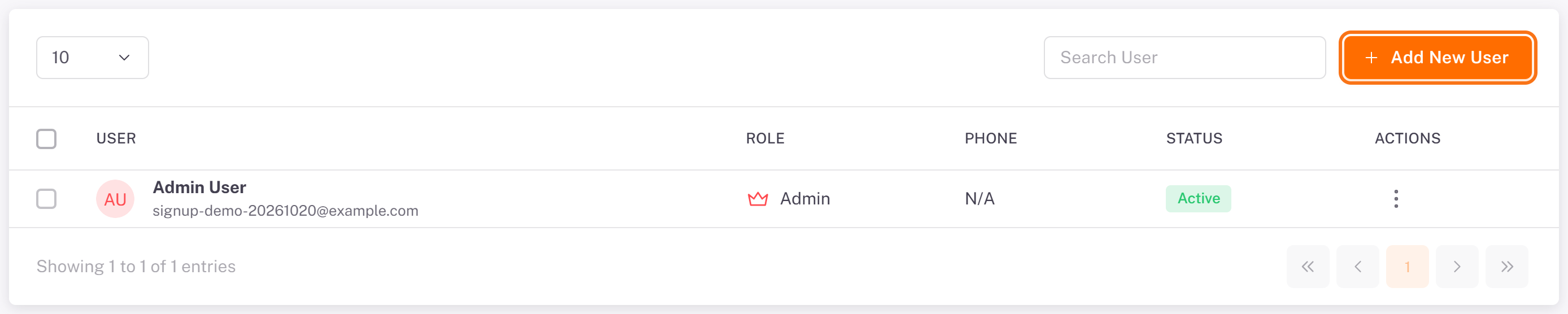
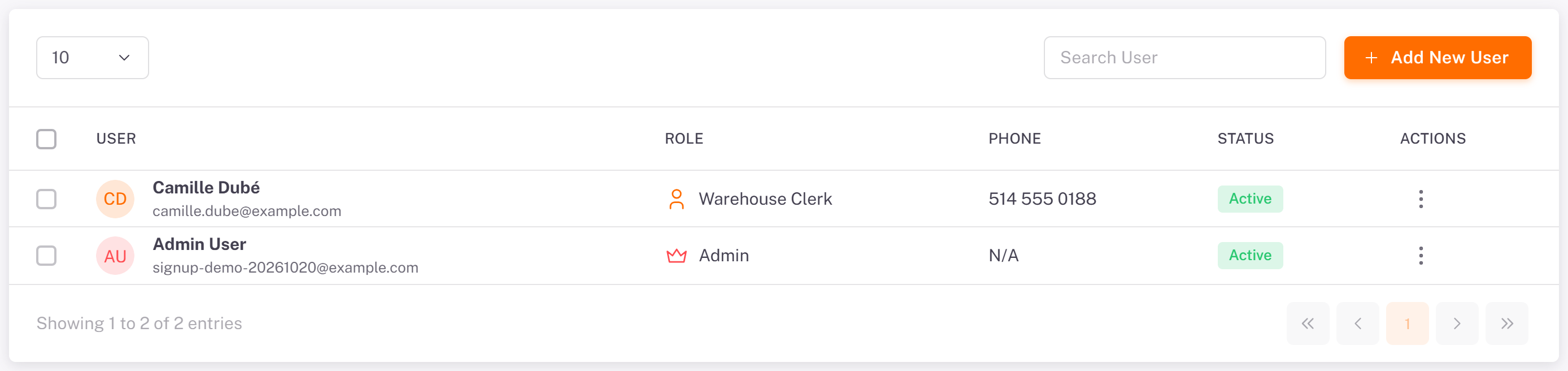
Open User management > Users. The list shows each user with their role, phone and status.
Add a user
1. Click Add New User.
2. Fill in First Name, Last Name, Email and, if you want, Phone.
3. Set a Password and Confirm Password: at least 8 characters with an uppercase letter, a lowercase letter, a number and a special character.
4. Choose the Role, then click Create User.
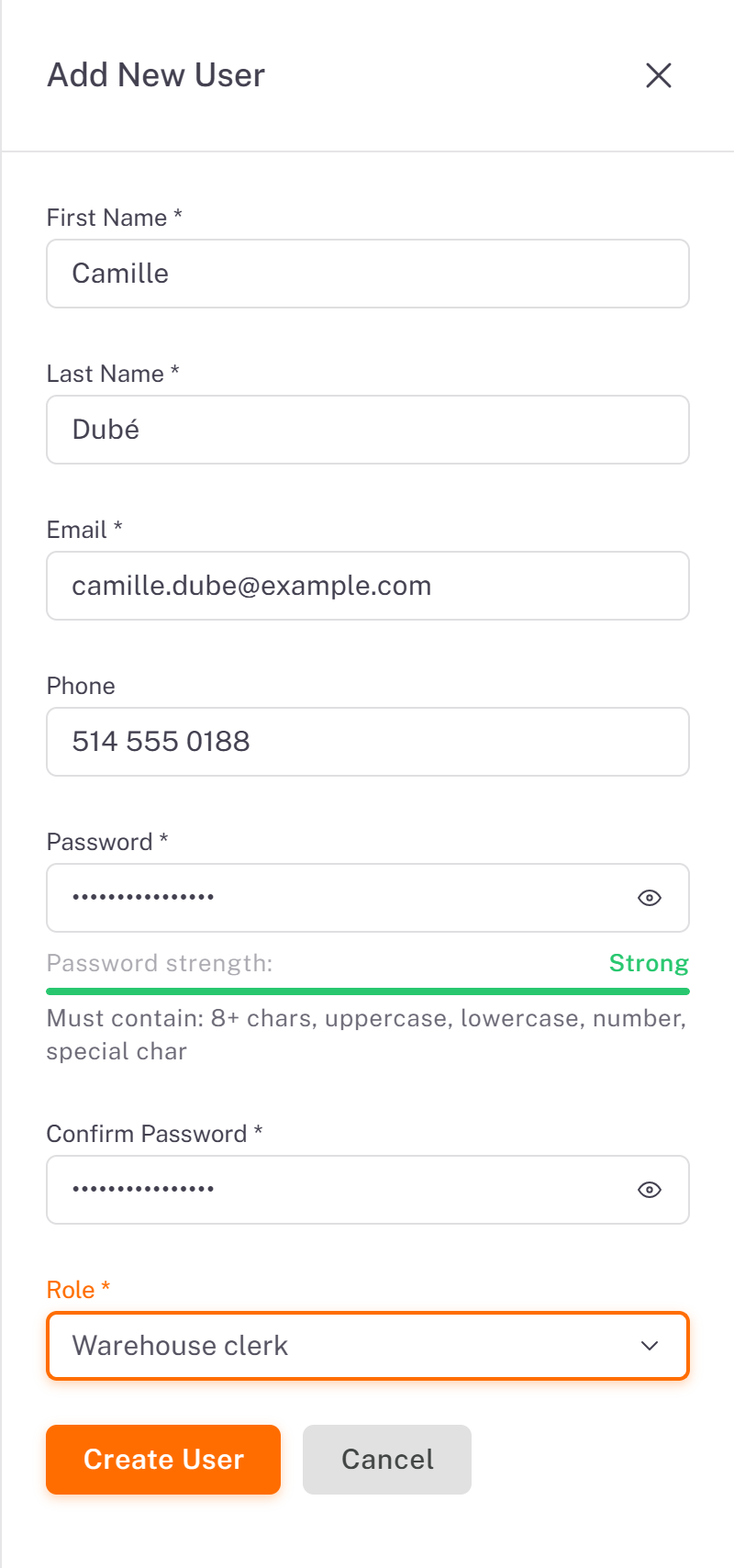
The account is active right away, and the user receives an email to tell them their account was created. Give them their password in person.
Edit, suspend or deactivate a user
Open the user's ⋮ menu:
Edit: change their name, phone or role (**Update User**).
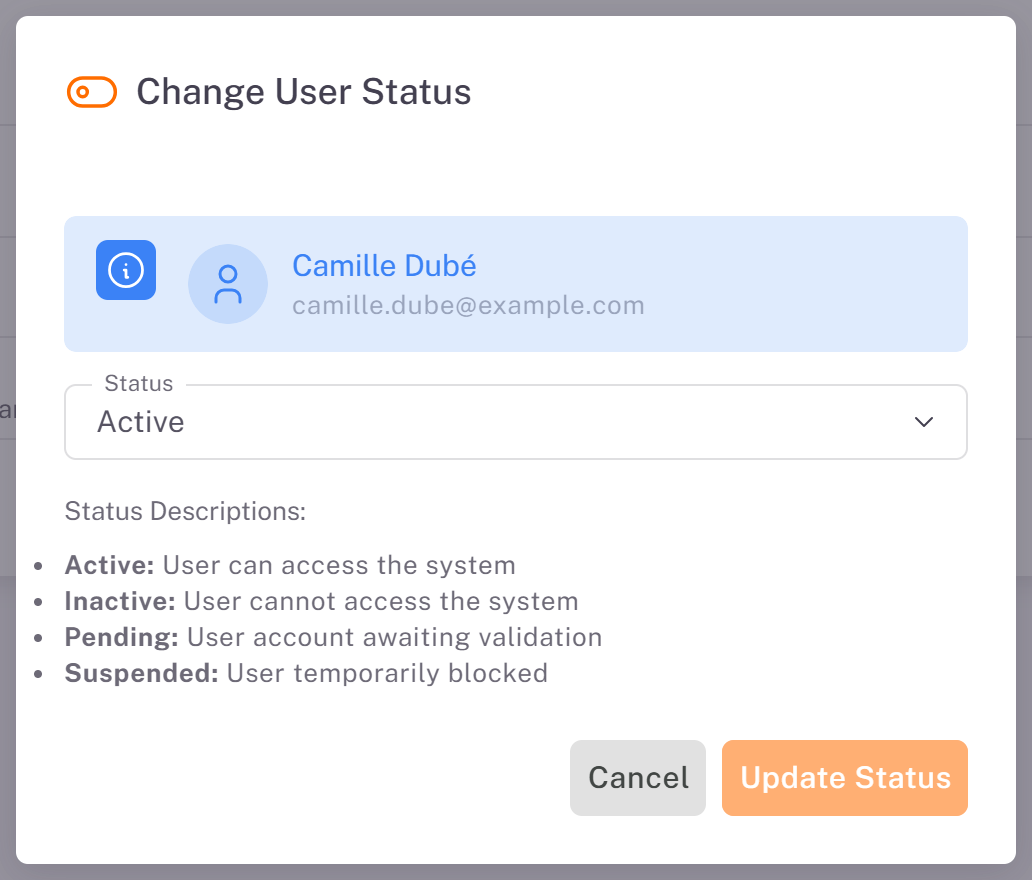
Change Status: choose Active (can use the console), Inactive (cannot sign in), Pending or Suspended (temporarily blocked), then click Update Status. The data the user created stays in place.
Good practices
One account per person: never share a login.
Give each role only the permissions the job needs.
Set a user to Inactive as soon as they leave the company.
Review your roles from time to time.
Was this article helpful?
Still need help?
Contact support