
Table of contents
Before you begin
You are signed in, and ONLINE is on at the top of the screen: you receive routes only while you are online.
When a route arrives
Your company sends you a route: you receive a notification New route RTE-… with the number of stops and packages, the departure time, and Tap to prepare loading. Tap it to see the Route summary (route, date, departure, stops, packages, vehicle, depot), then Open my route.
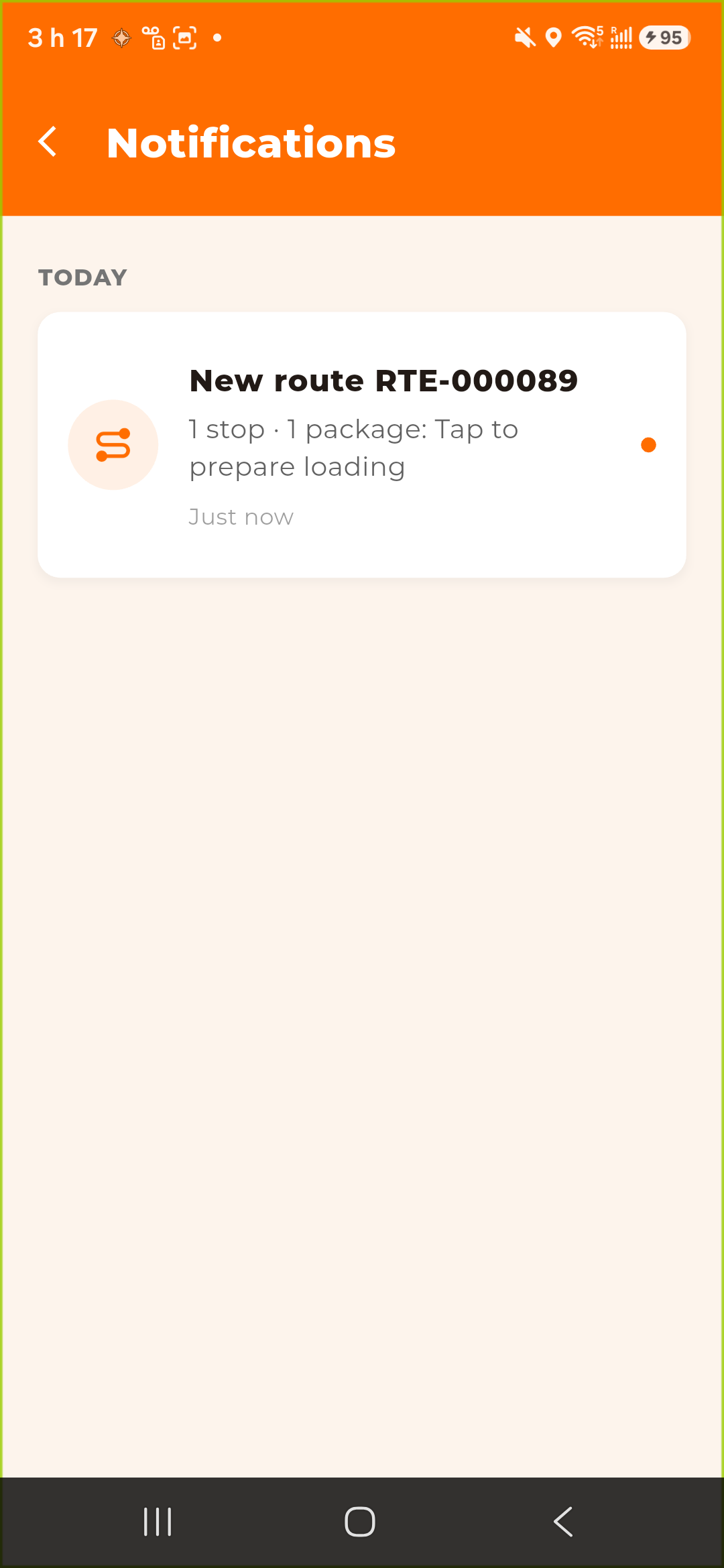
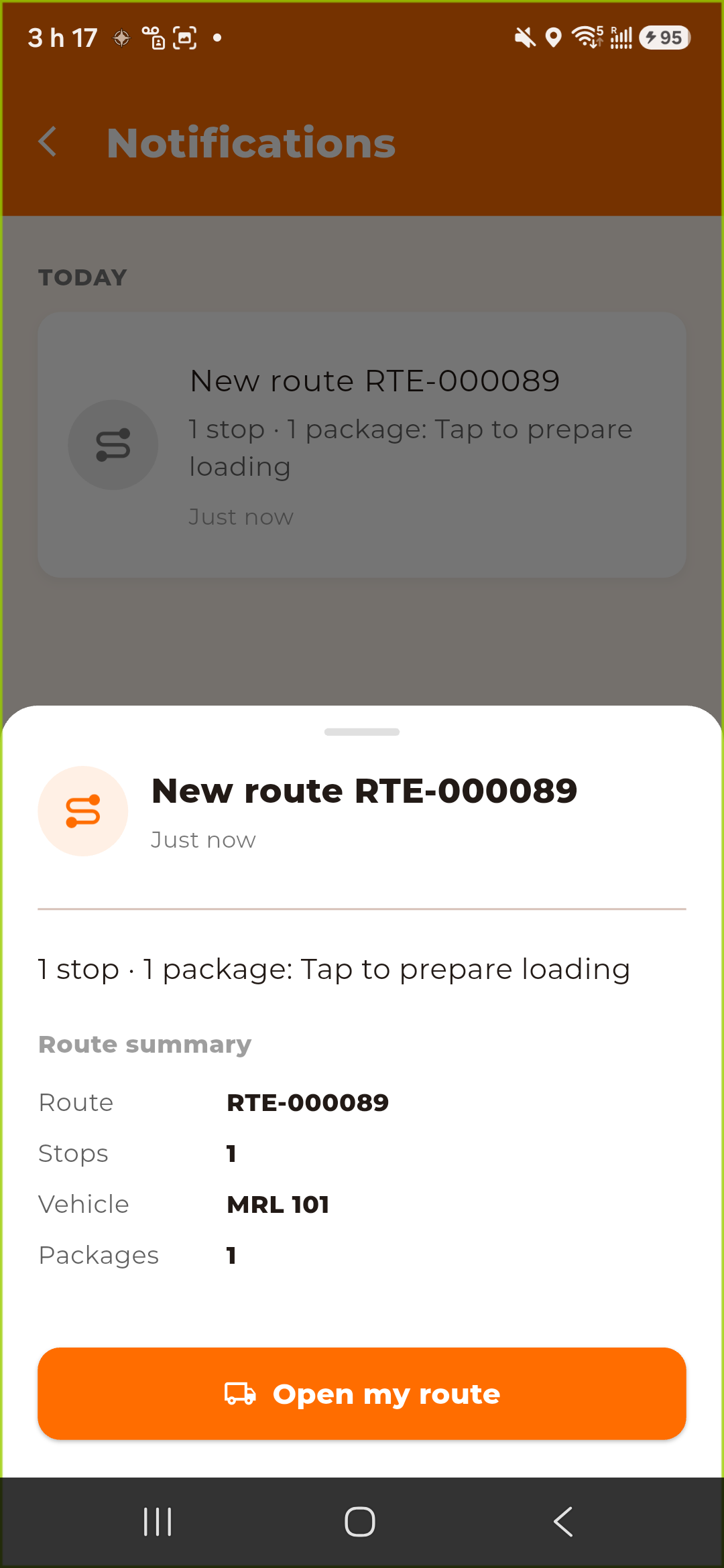
A Departure reminder can also remind you to leave.
The Orders tab
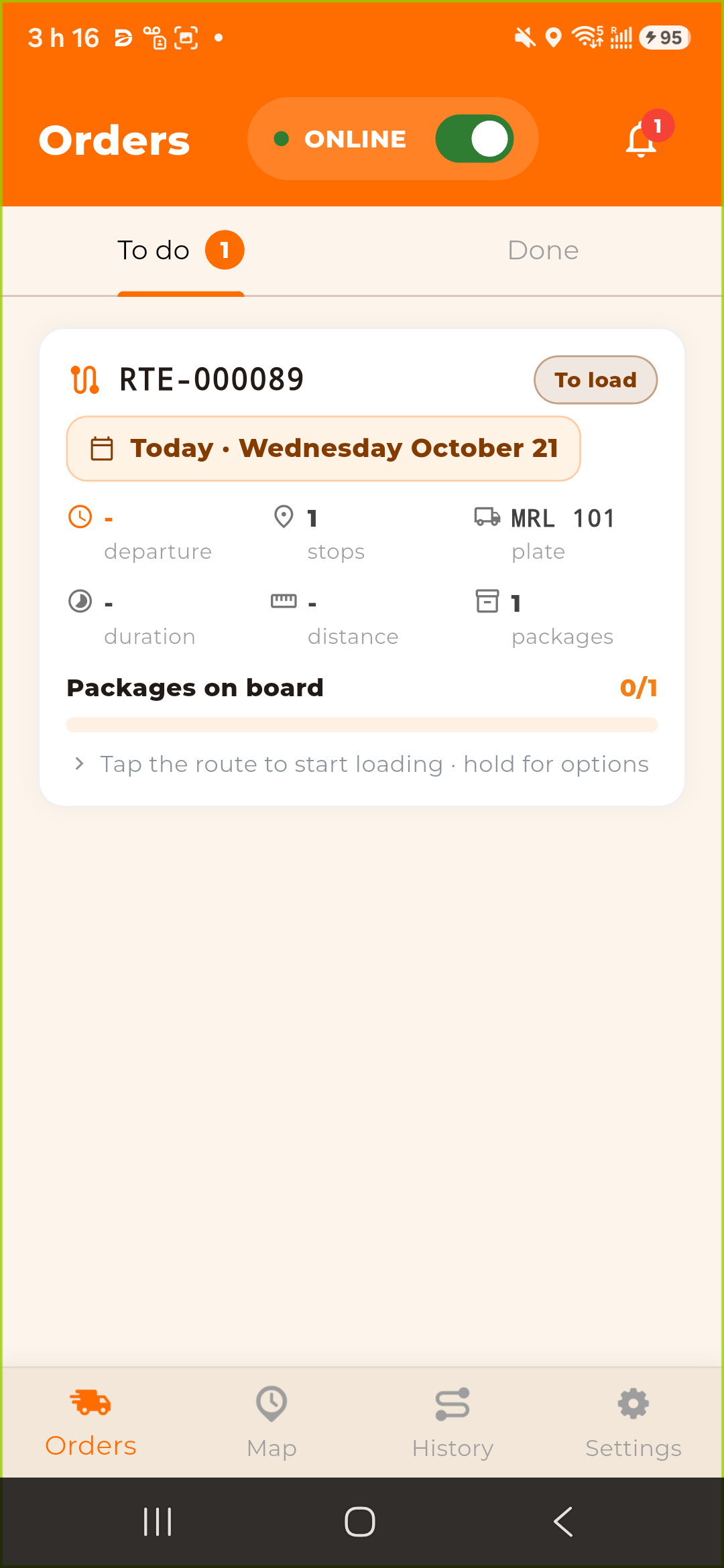
The Orders tab has two sub-tabs: To do and Done.
Before loading, your route card reads To load. Tap it to start loading, hold it for options (see [Handing a Route Back or Reporting a Delay](../03-handing-a-route-back-or-reporting-a-delay/en.md)).
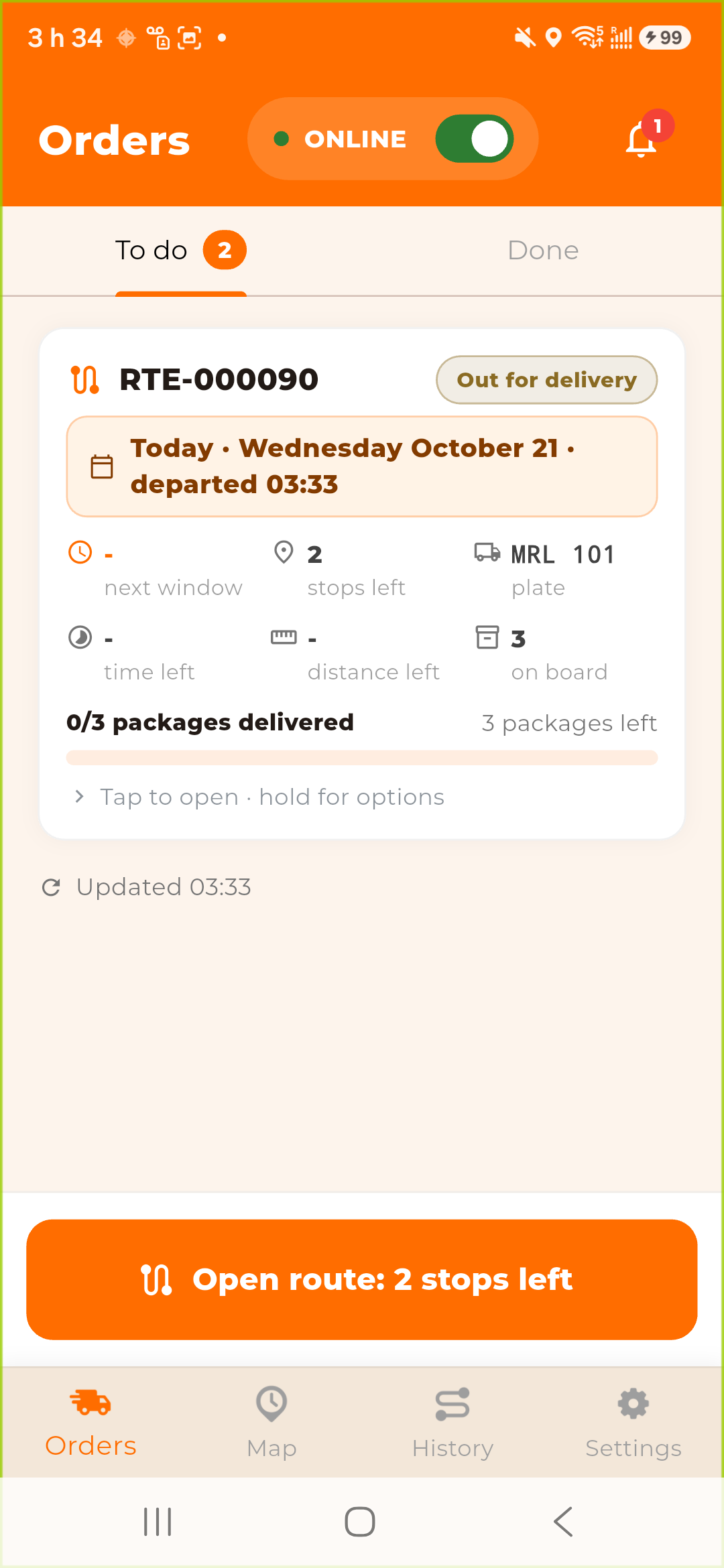
Once the route has left, the card shows the code, the status, the departure, the plate, the stops left, the next window, the packages on board, and how many packages delivered. Tap to open · hold for options. The button at the bottom, Open route: N stops left, opens your stops.
Later today lists your next routes of the day. You run them one after the other: you receive the next one once the current one is finished.
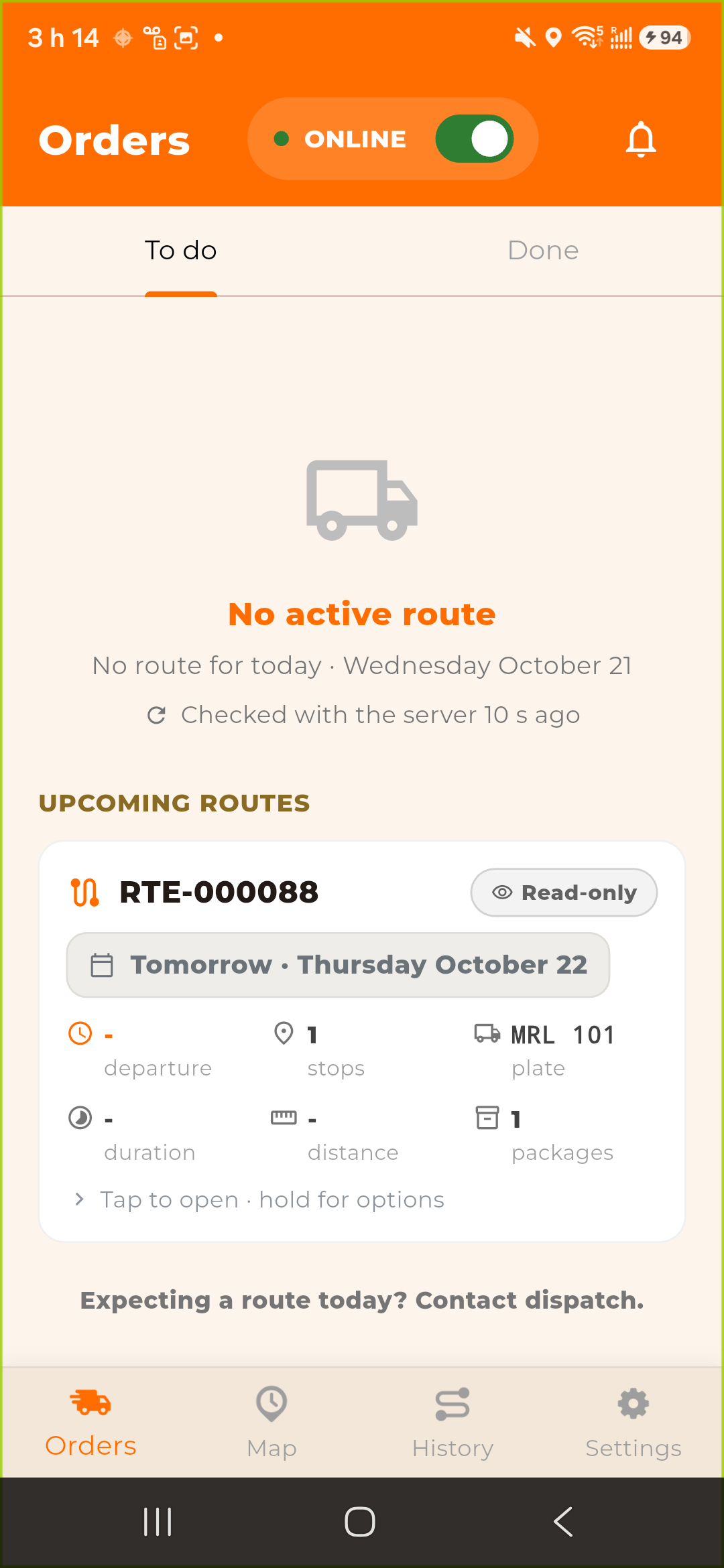
Upcoming routes shows routes planned for the next days. They are Read-only until their day.
No route today? The screen reads No active route. Expecting a route today? Contact dispatch.
The Done sub-tab
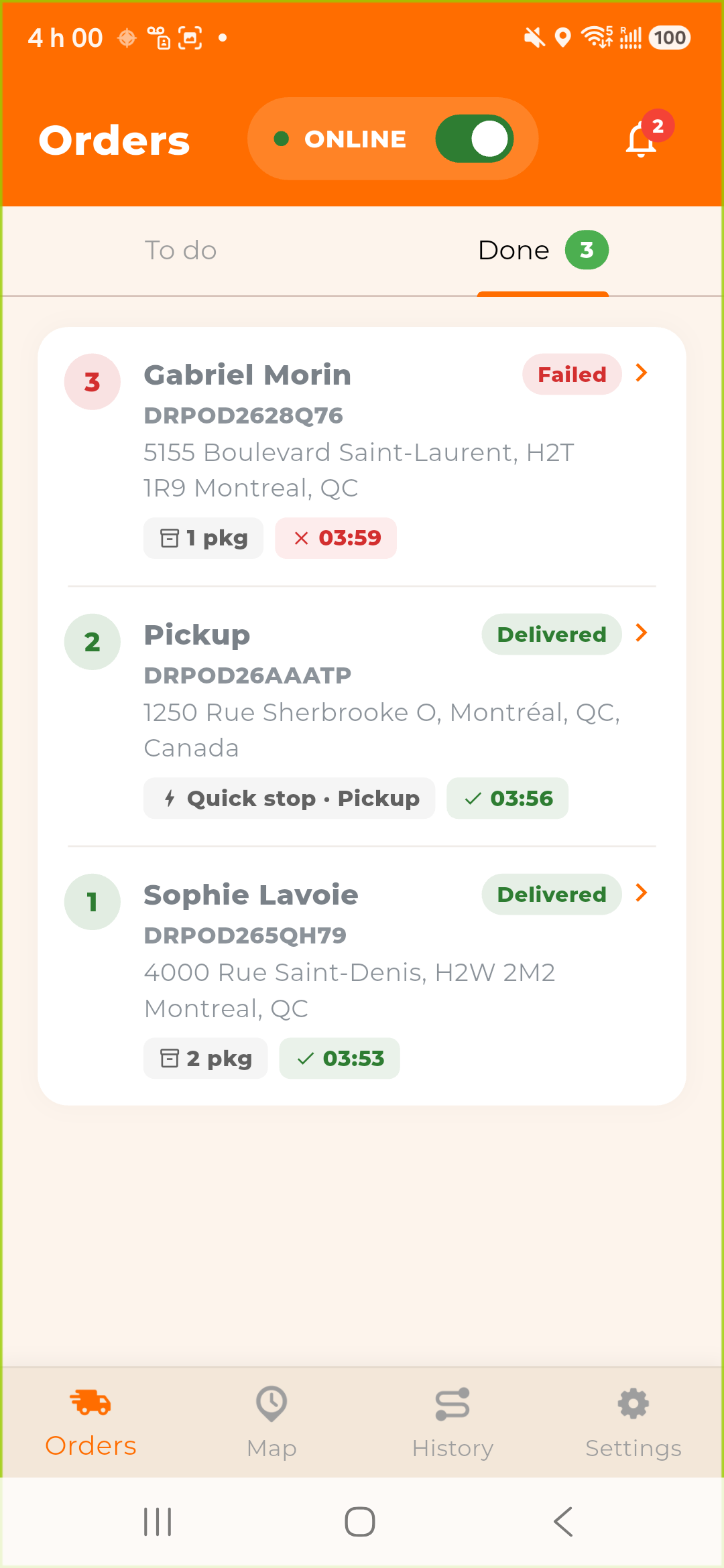
Done lists all the deliveries of the day, finished routes included.
Was this article helpful?
Still need help?
Contact support