
Table of contents
Follow your orders
1. Open Orders. My orders lists every order you submitted, with Your reference, the recipient, Packages received, the Status, the Delivery partner and the Delivery date with its time window. Filter by Status, Partner or date, or search by order code or reference.
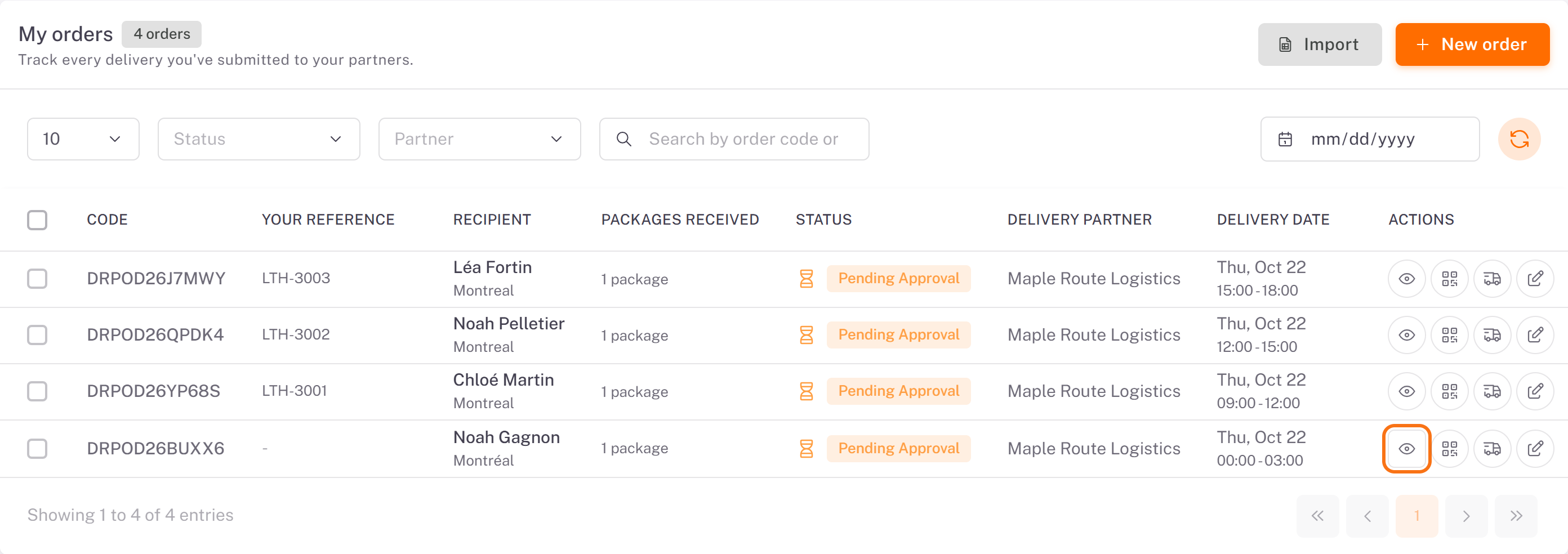
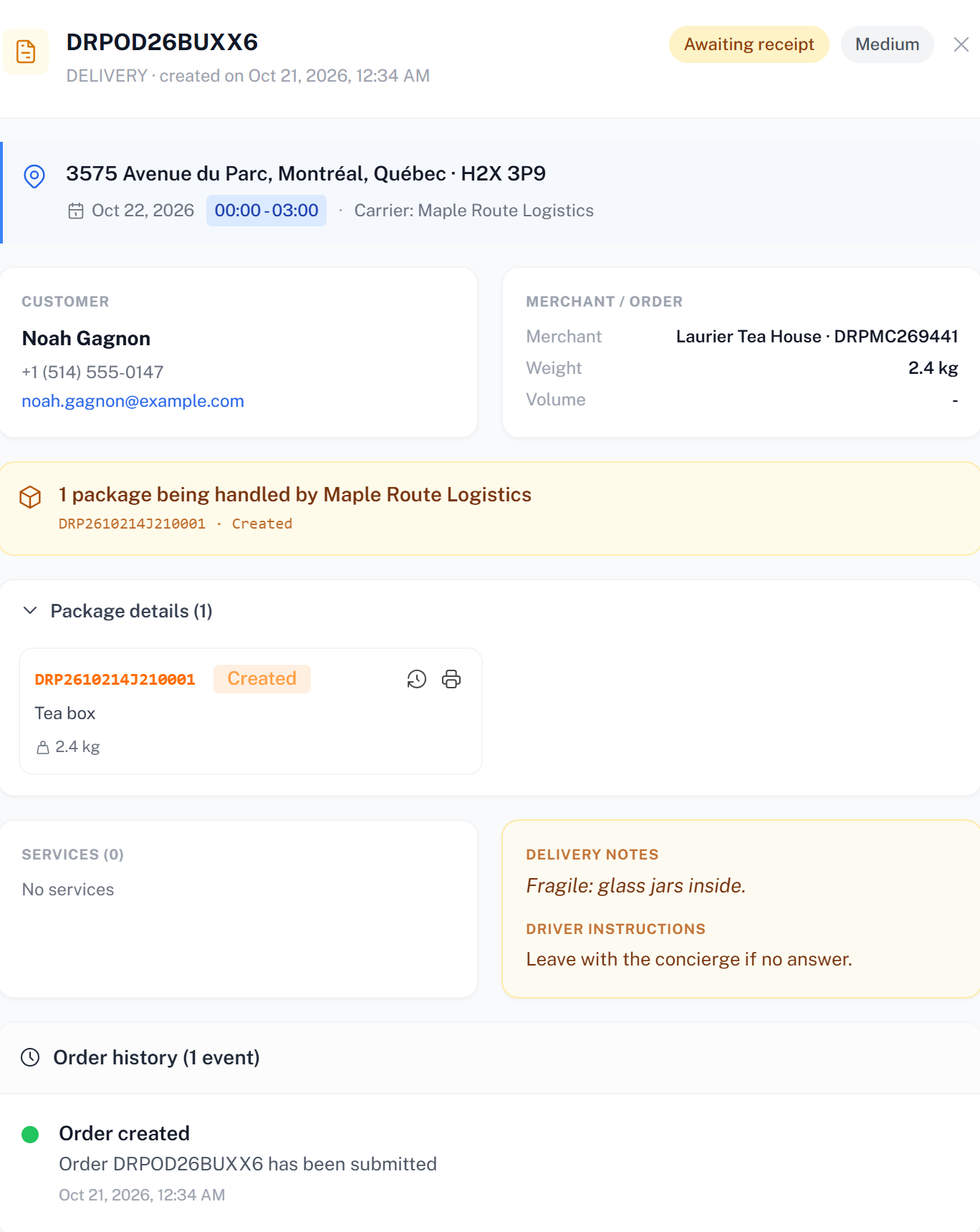
2. Click the eye icon (View Details) to open an order: its status, the delivery address and window, the customer, the packages and the Order history. While the order is Pending Approval, a banner reminds you that the carrier must approve it before anything moves, and Edit and Cancel are available.
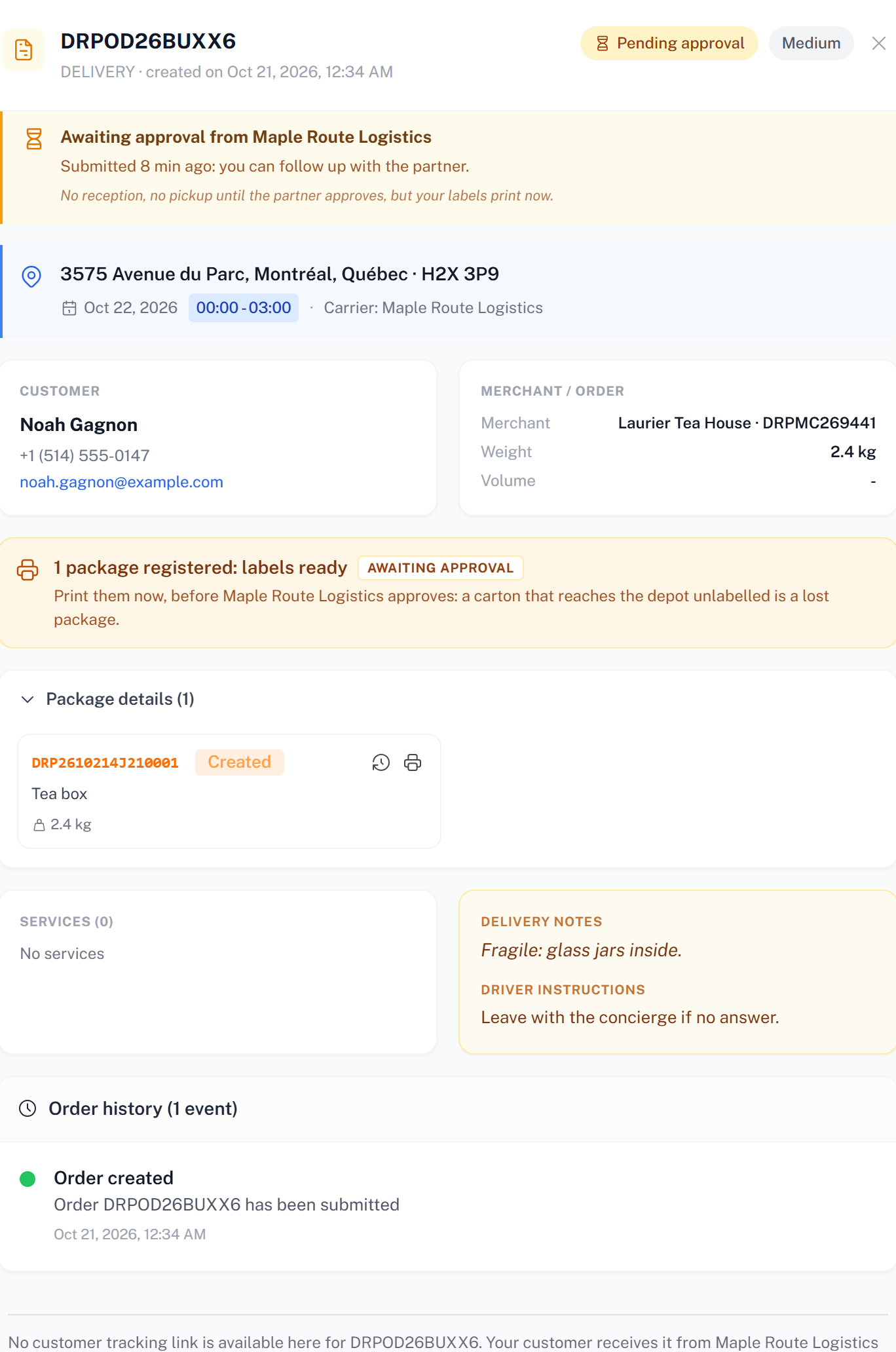
The first order statuses
Status Meaning
Pending Approval Sent, waiting for the carrier. You can still edit or cancel it.
Awaiting Receipt Approved: the carrier is waiting for your packages at its warehouse.
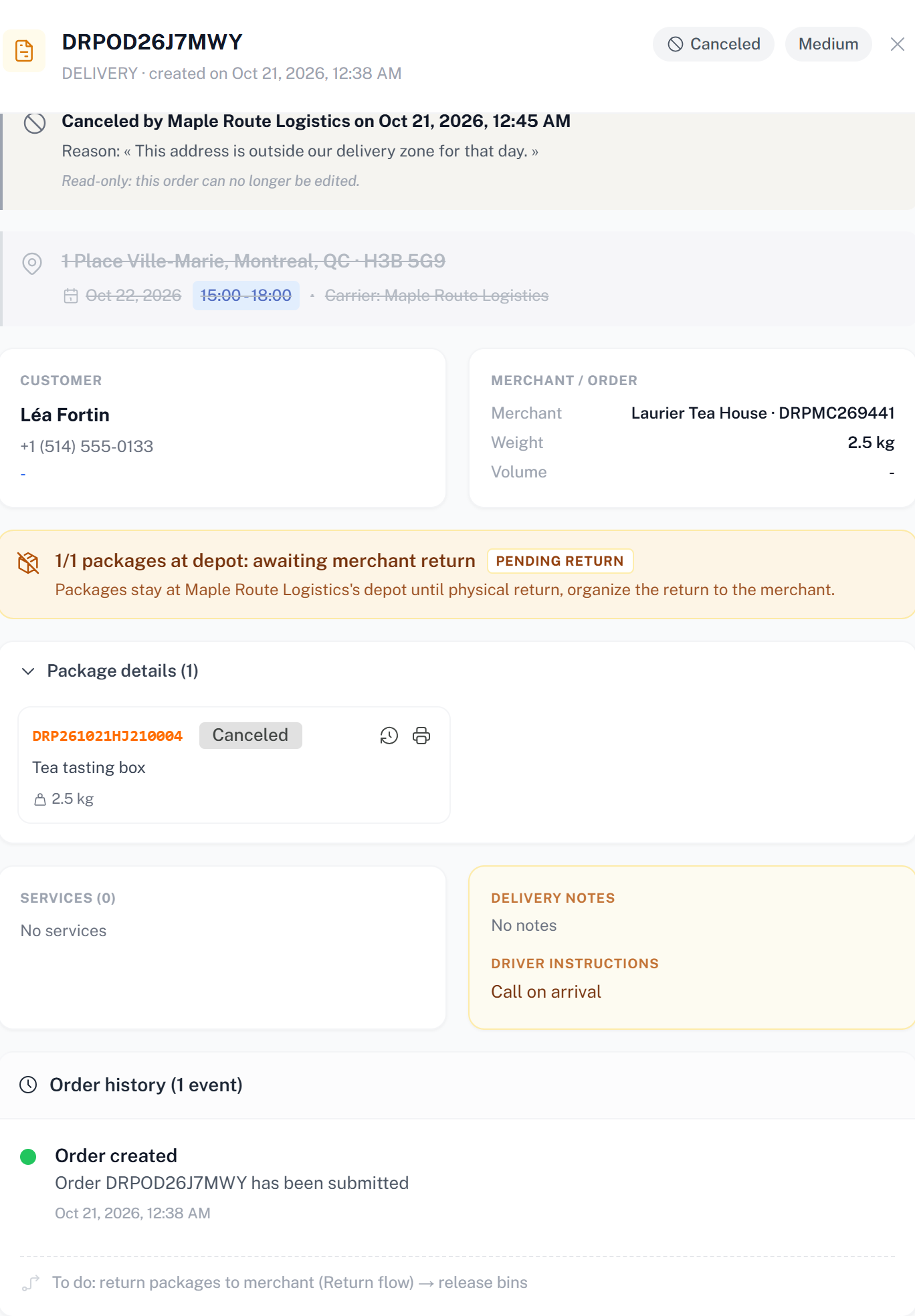
Canceled Canceled by you, or rejected by the carrier: the details show who and the reason.
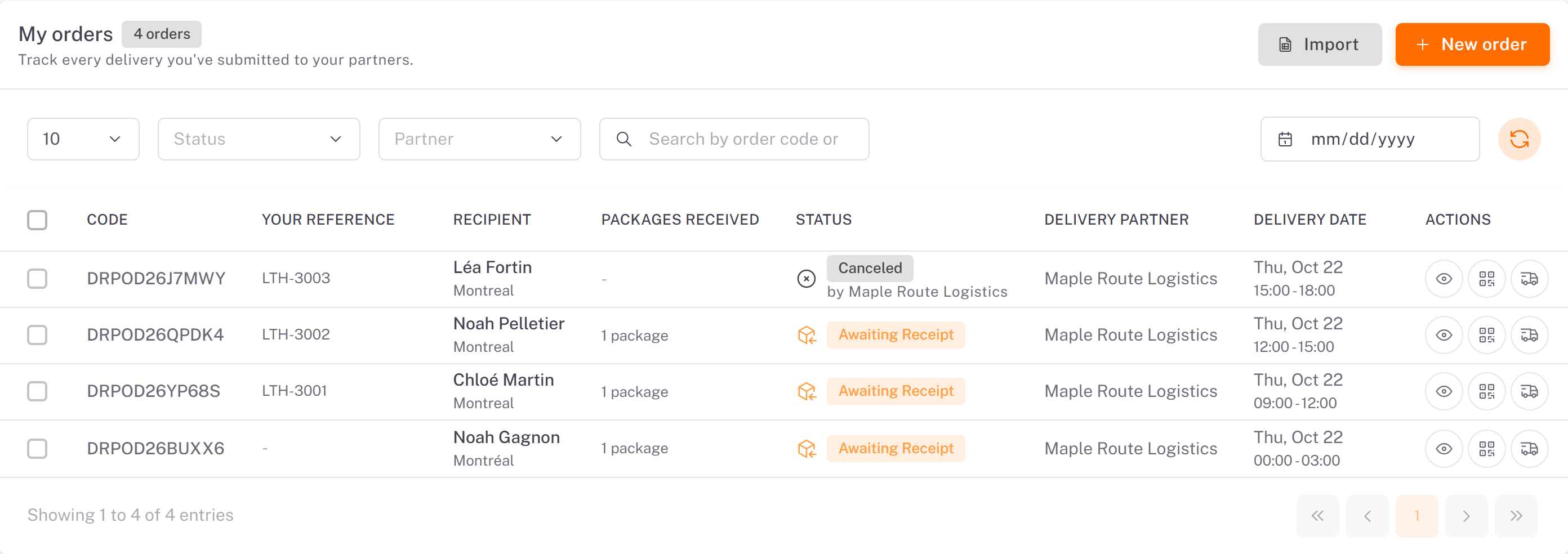
When the carrier rejects an order, its details show Canceled by … with the date and the reason, and the order becomes read-only.
Follow a package
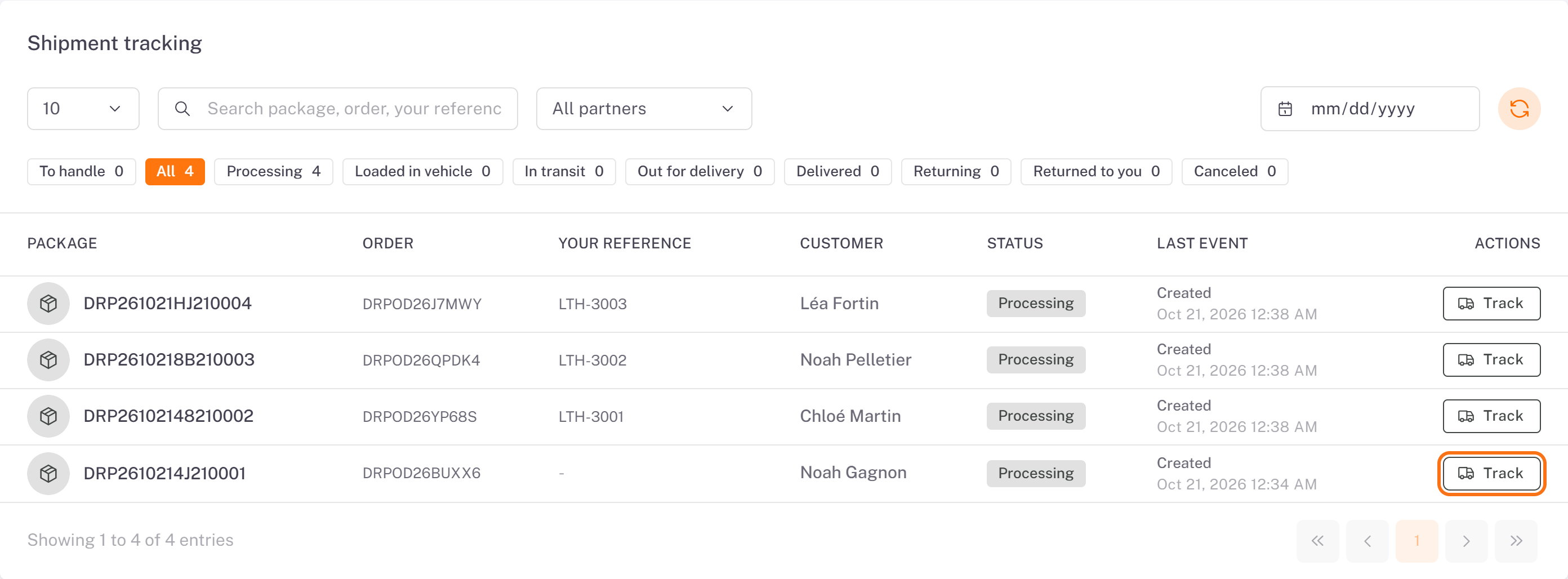
1. Open Tracking. Shipment tracking lists your packages one per row. The chips filter by stage: To handle (packages with an exception that needs you), All, Processing, Loaded in vehicle, In transit, Out for delivery, Delivered, Returning, Returned to you, Canceled.
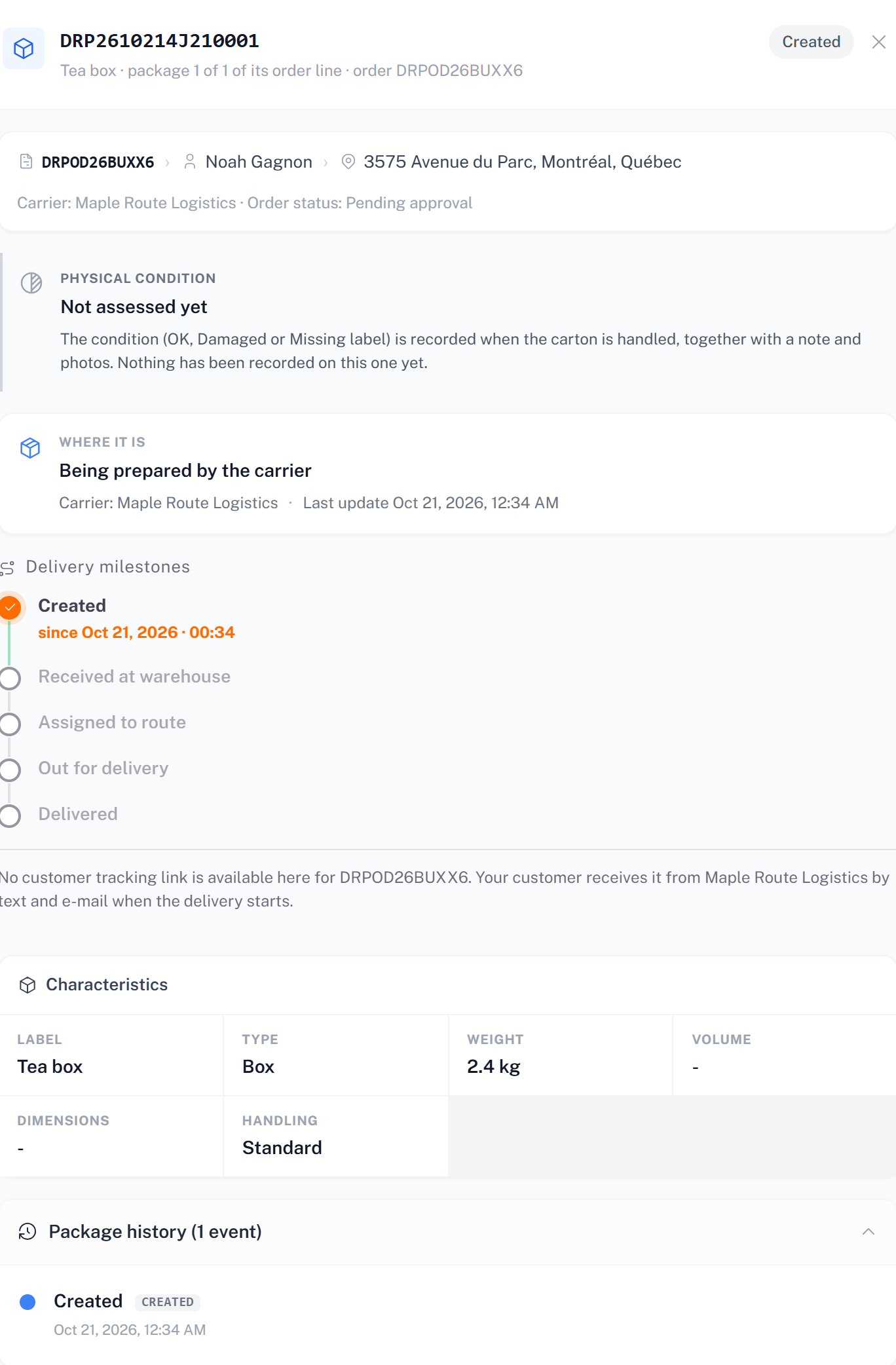
2. Click Track on a package. You see its Physical condition, Where it is, the Delivery milestones (Created, Received at warehouse, Assigned to route, Out for delivery, Delivered), its characteristics and its Package history. Print label prints its label again.
Labels
Print the labels of an order at any time: labels icon in the My orders list (**Labels & QR codes**), or Print labels in the order details. One 4 × 6 in label per package.
Proof of delivery
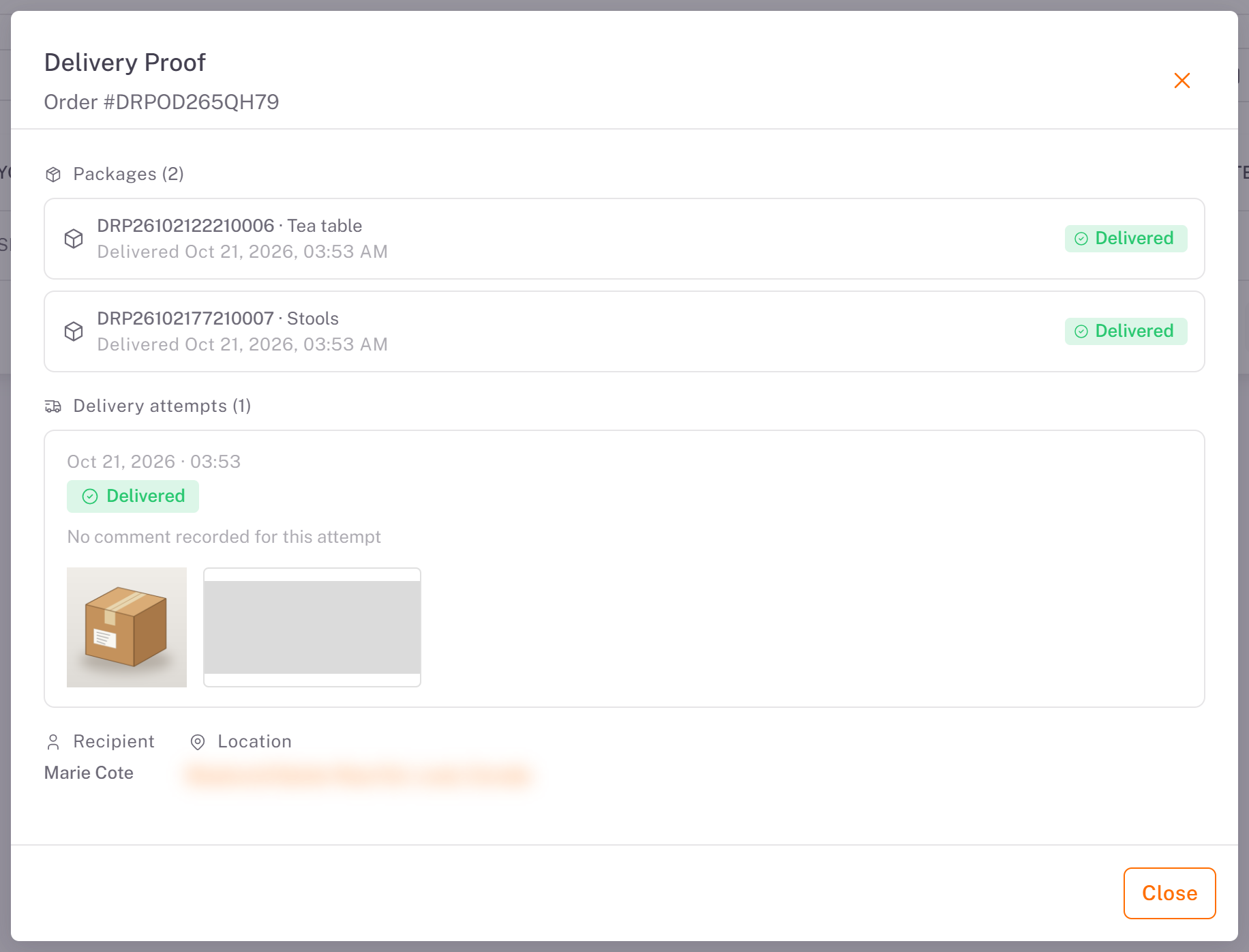
Once an order is delivered (or the delivery failed), the Delivery Proof icon appears on its row in My orders. It shows the Proof of delivery recorded by the driver: handover photos, the recipient's signature and, when the driver recorded them, short videos. Click a photo to enlarge it.
Good to know
The customer tracking link is not shown in the portal: your customer receives it from the carrier, by text message and email, when the delivery starts.
Packages received tells you how many of your cartons the carrier has scanned at its warehouse.
Was this article helpful?
Still need help?
Contact support